
KokKok
Hold a mouse button and click, scroll or swipe.
From side-button back to smooth scrolling,
moving files and your clipboard — all with one mouse.
How it works
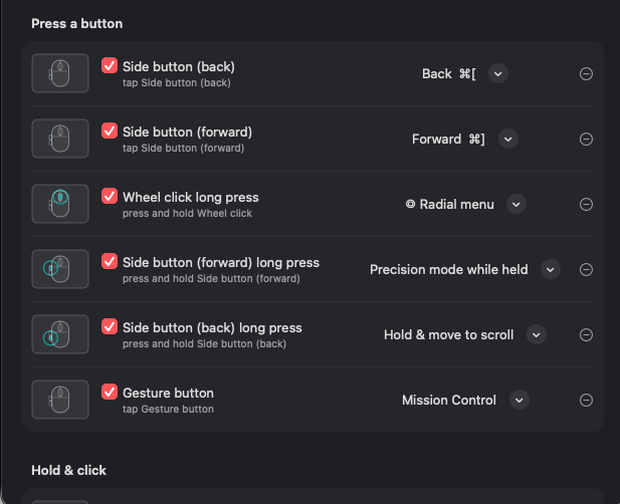
Real KokKok screens · just tick a box in Settings
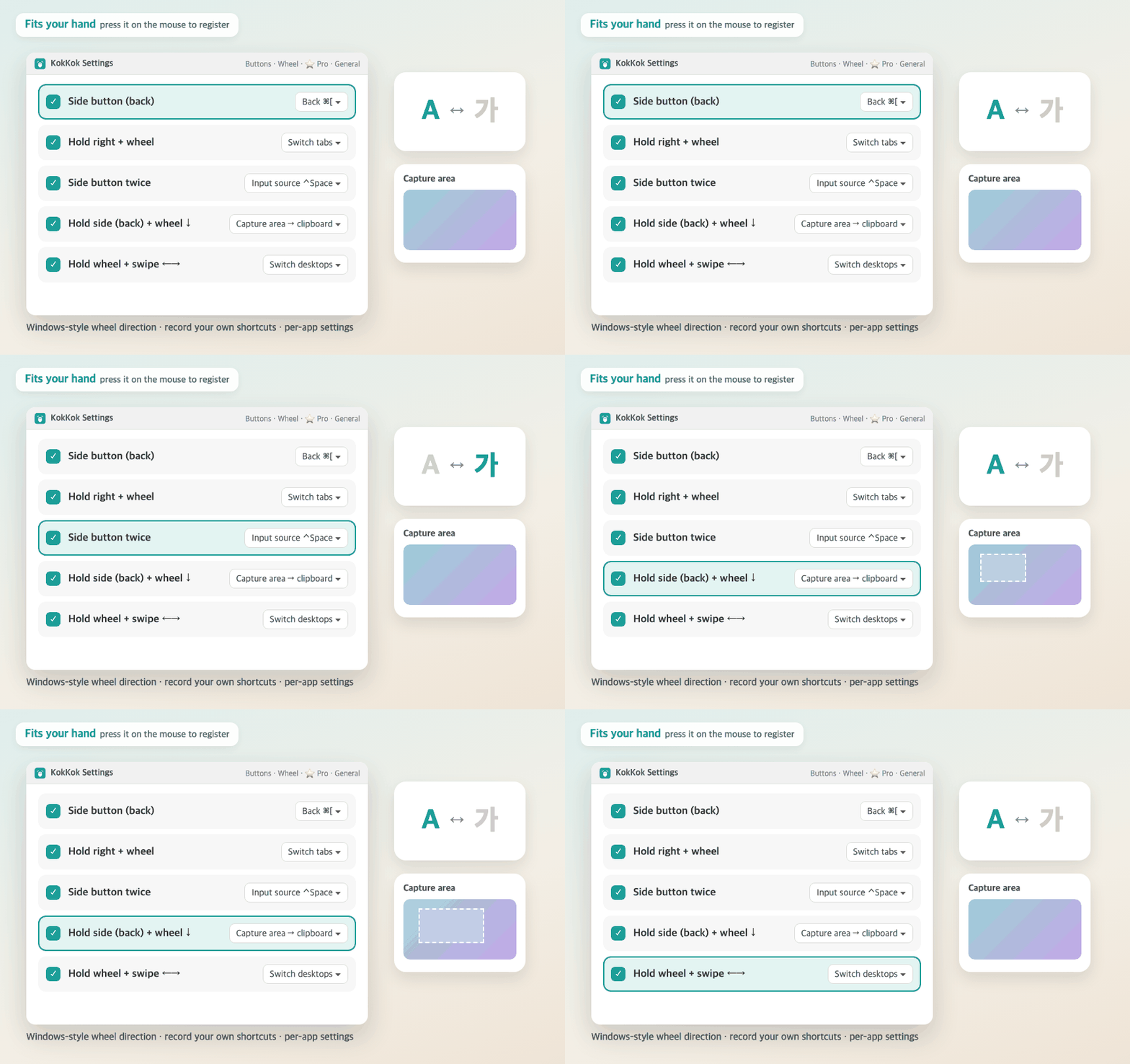
Tick a box and pick an action. Combos like switching input sources or capturing an area register just by pressing them on your mouse
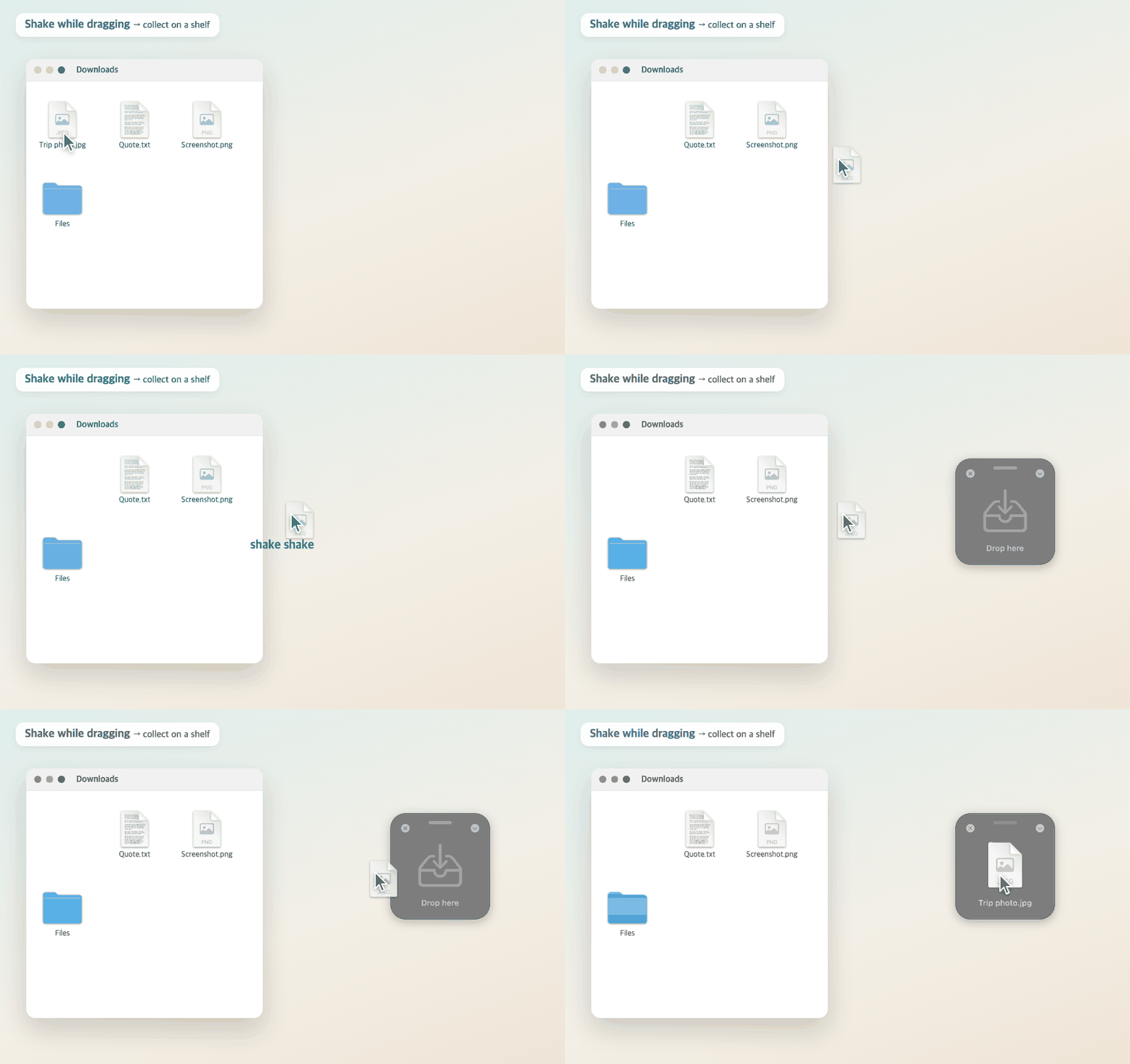
Shake left and right while dragging files and a shelf appears by the cursor. Collect from many places, then move them all at once
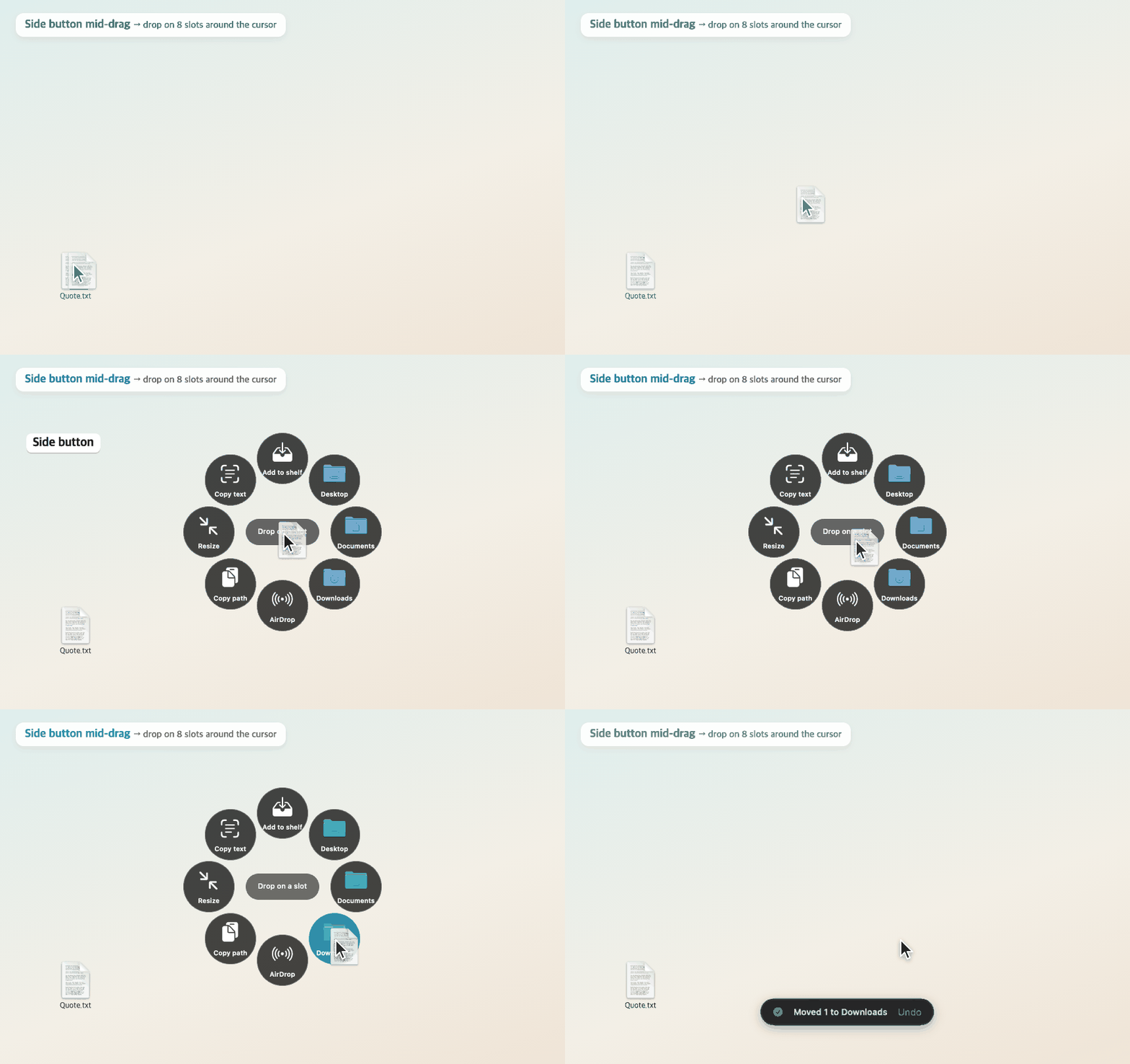
Favorite folders, AirDrop, copy path and resize around your cursor. Drop to move right away — and undo if you change your mind
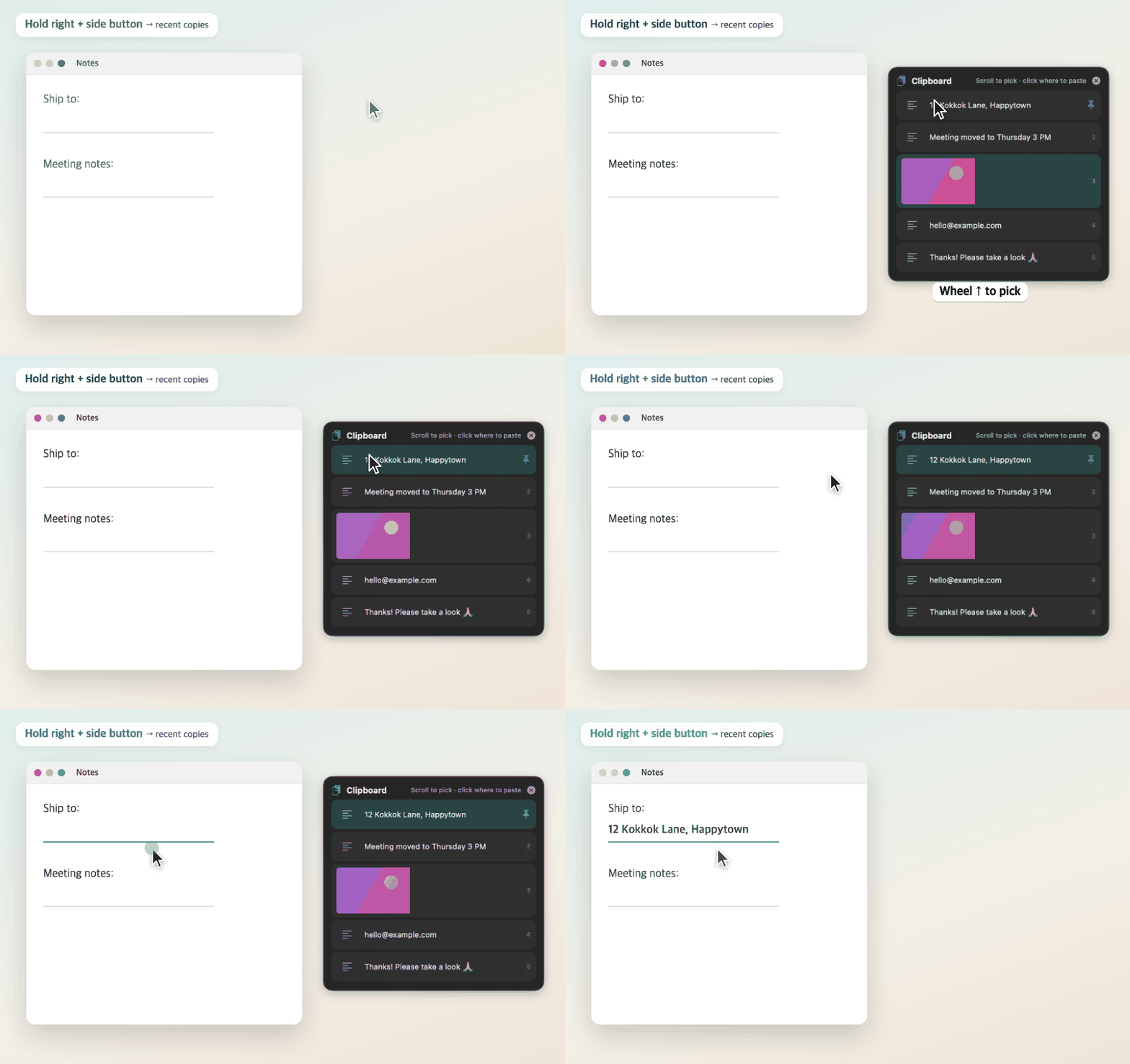
Hold right + side button → pick with the wheel and click where to paste. Pin the snippets you use often
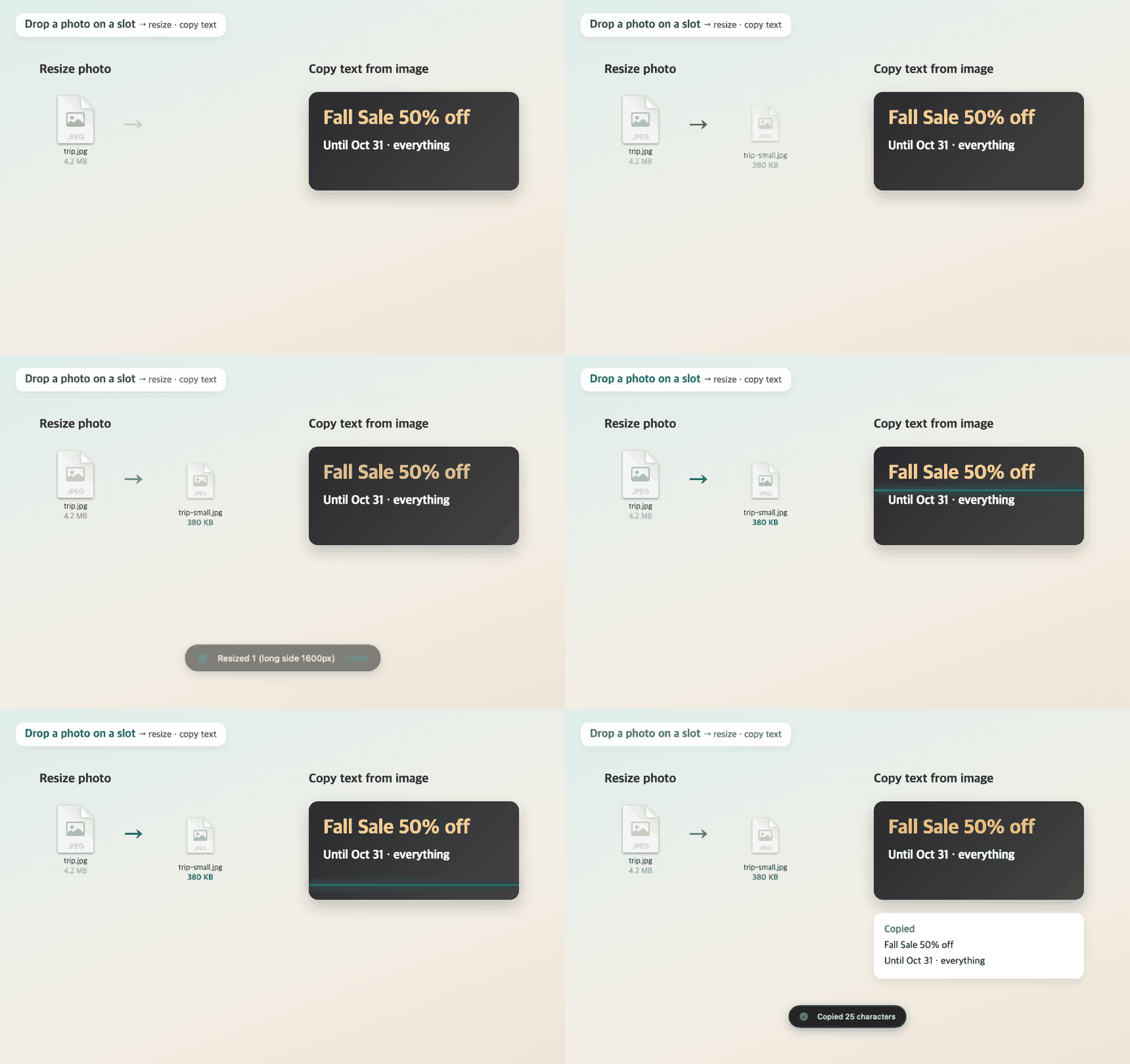
Drop a photo on a slot to shrink it to 1600px on the long side, or copy the text in it
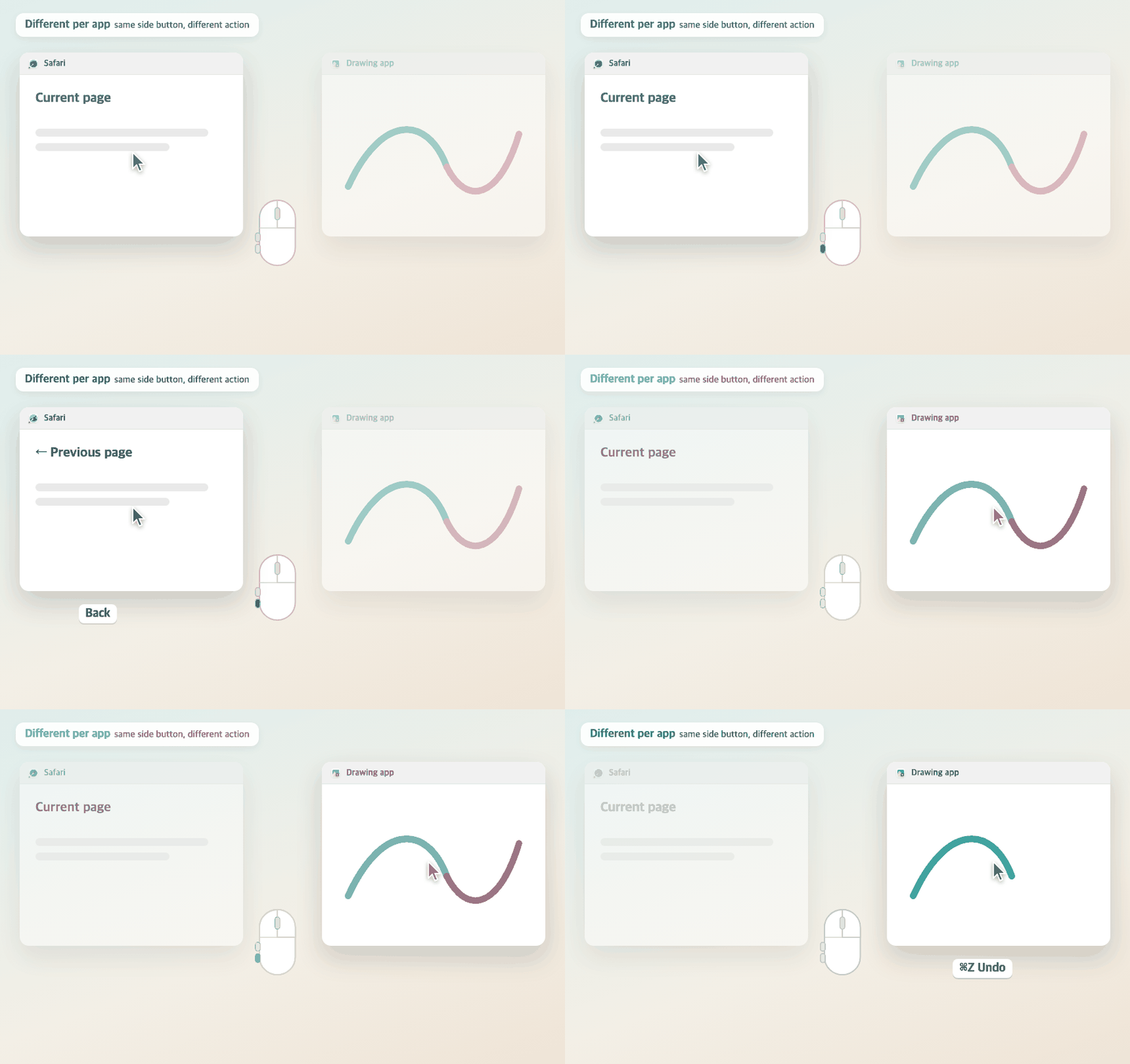
The same side button goes back in your browser and undoes in a drawing app
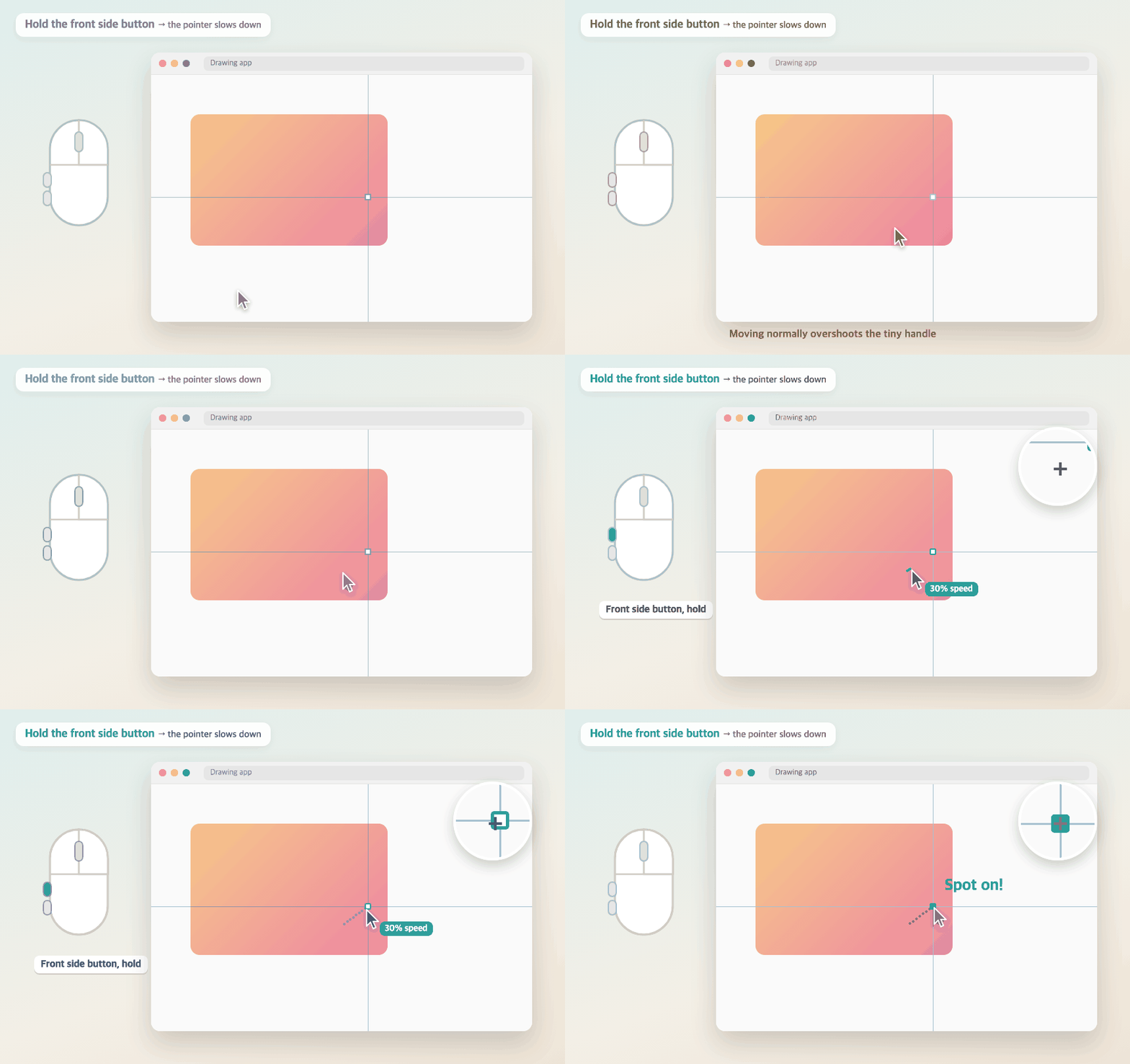
Hold the front side button and the pointer moves at 30% — down to the pixel for photo editing and design
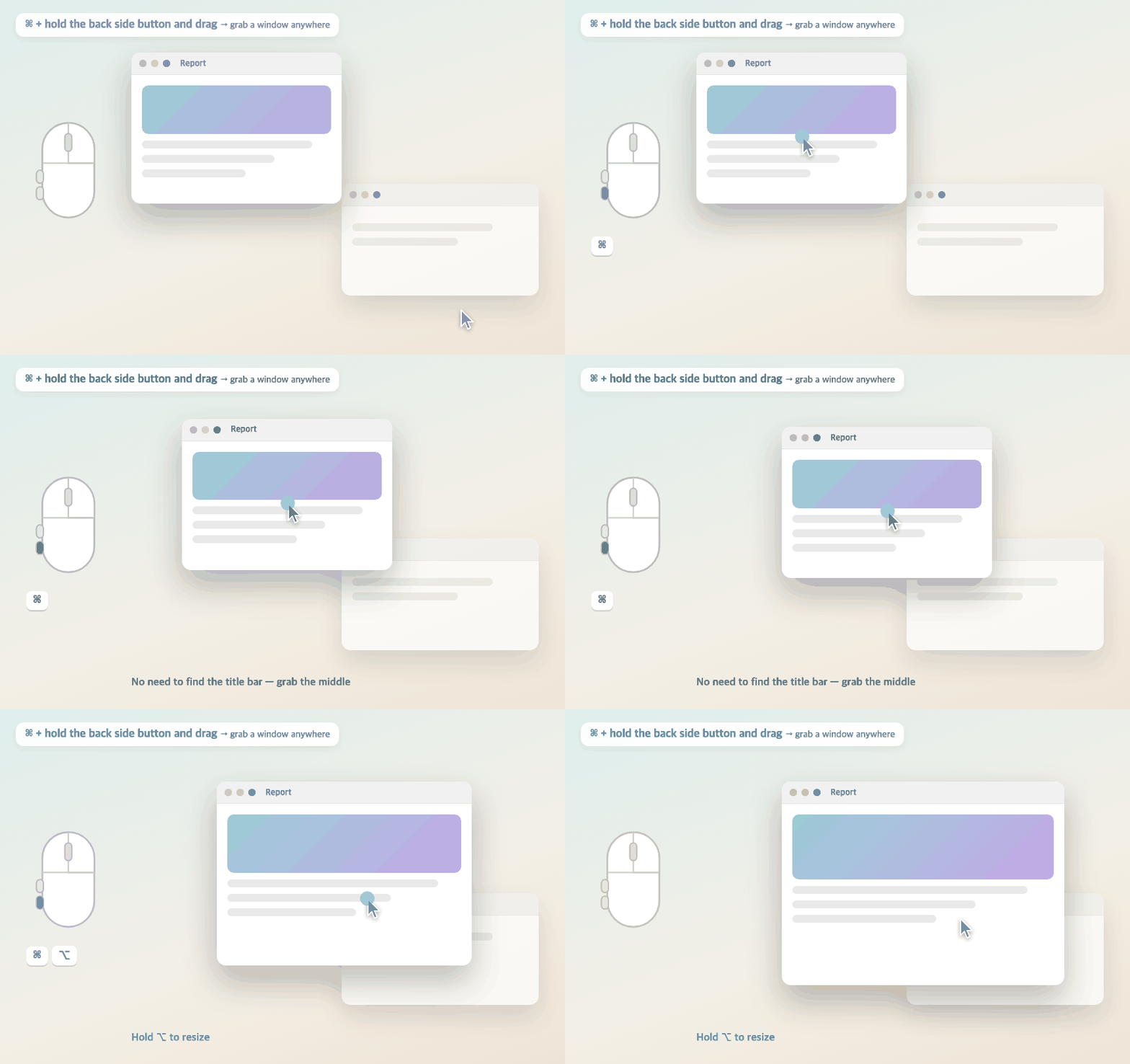
Hold ⌘ + the back side button and drag — grab a window anywhere · hold ⌥ to resize
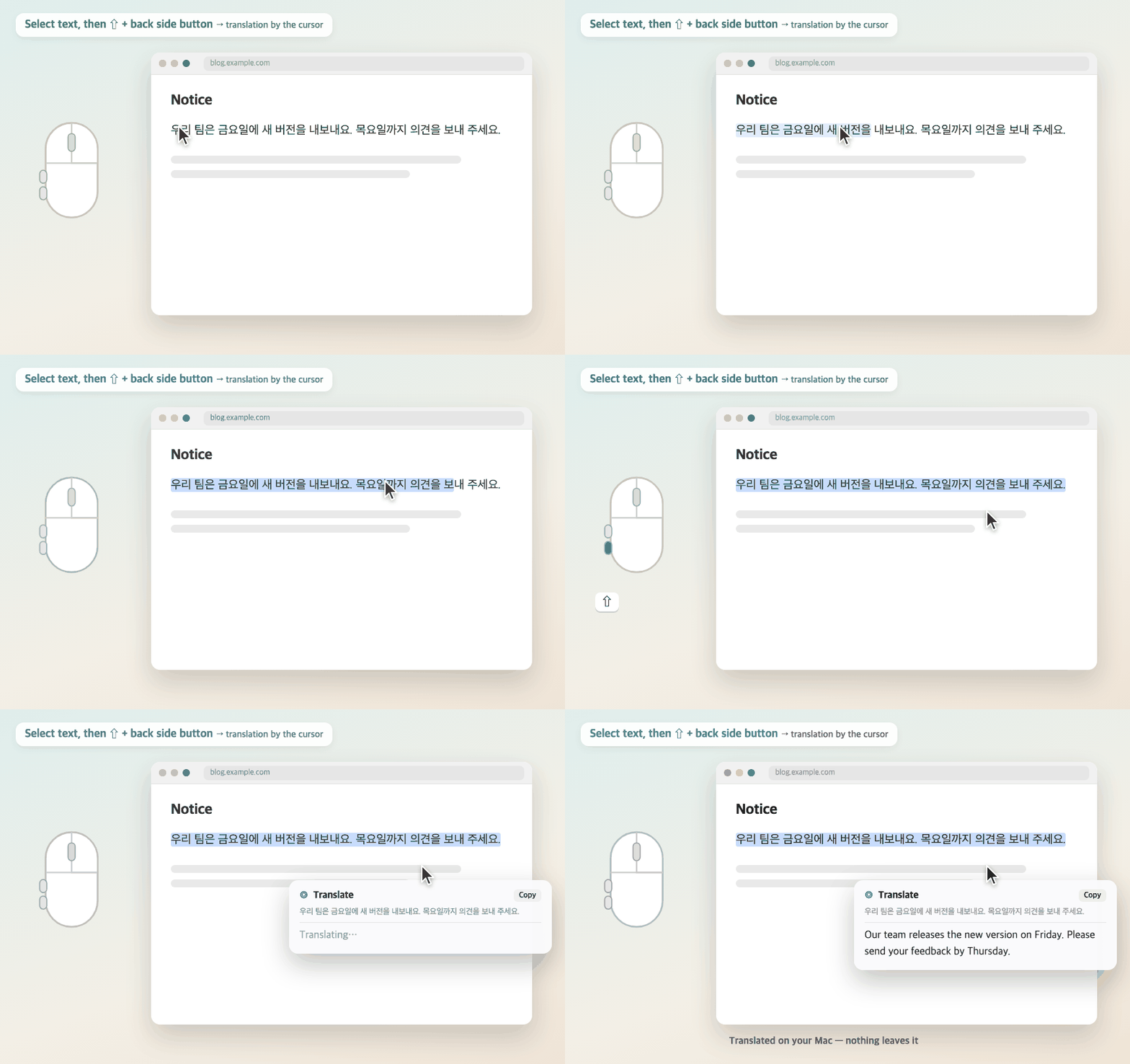
Select text, press ⇧ + the back side button → translation by the cursor · translated on your Mac, nothing leaves it
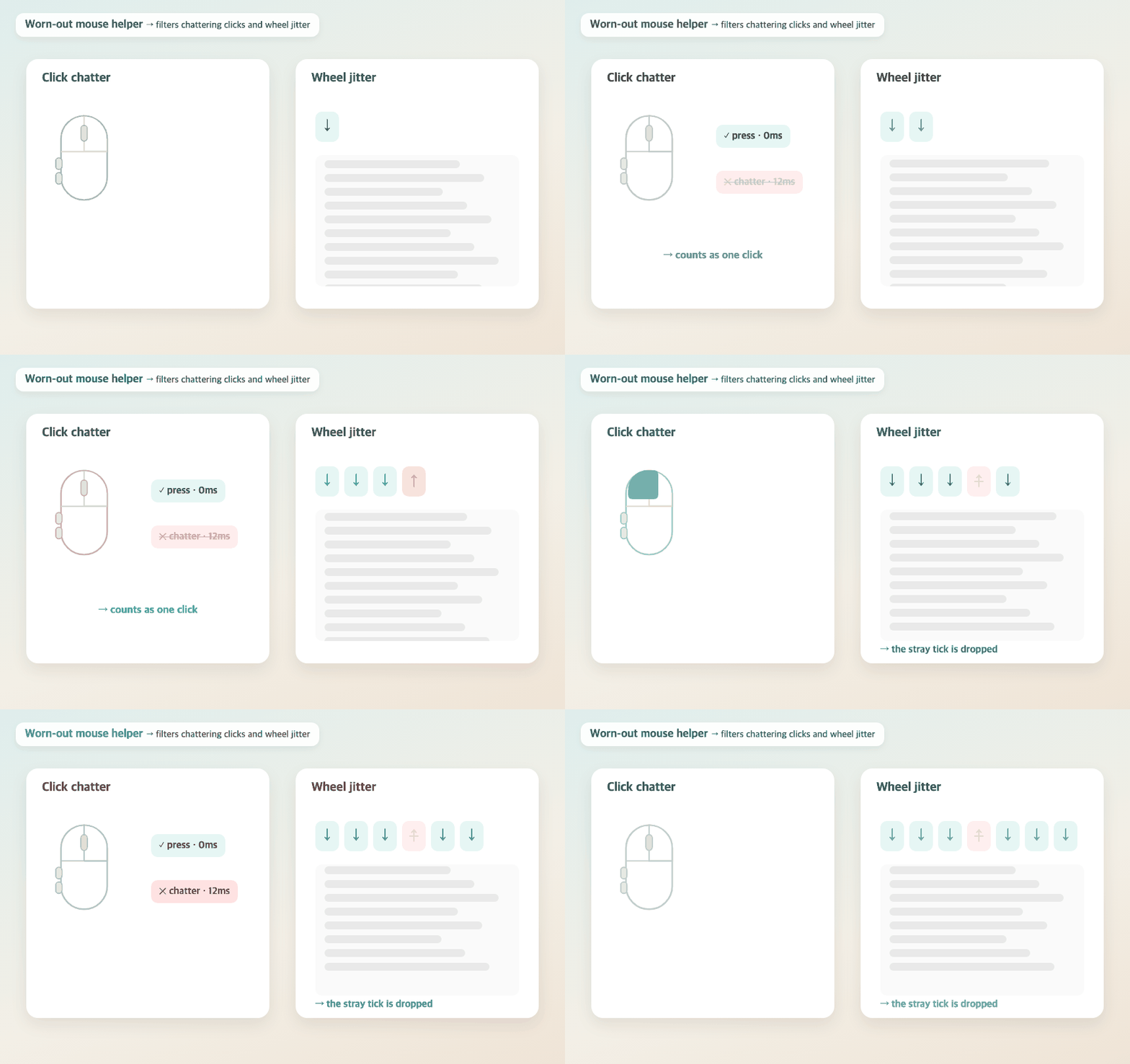
Filters a click that registers twice and a wheel tick that jumps back · makes an old mouse usable again
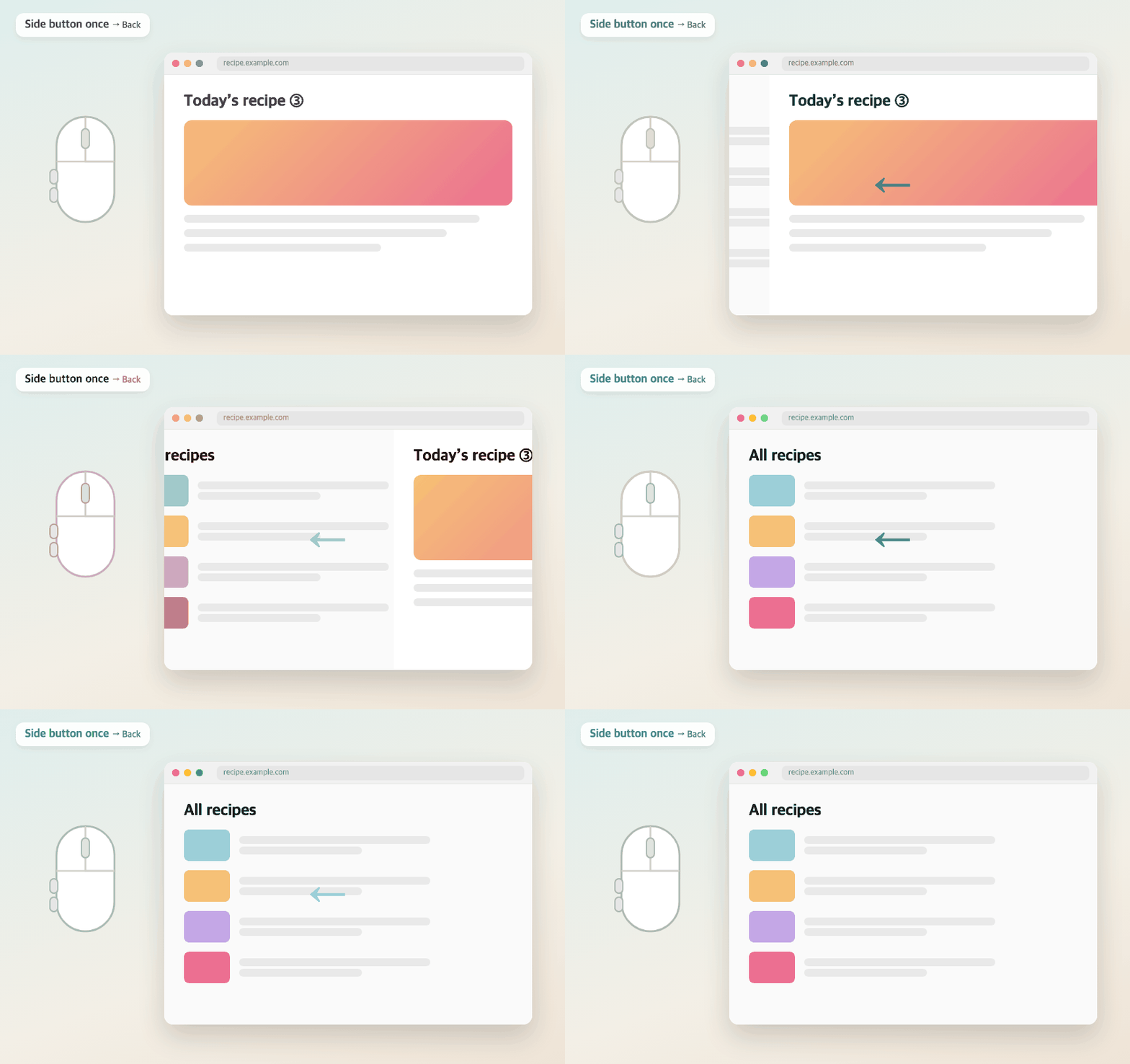
One press in your browser, Finder and more
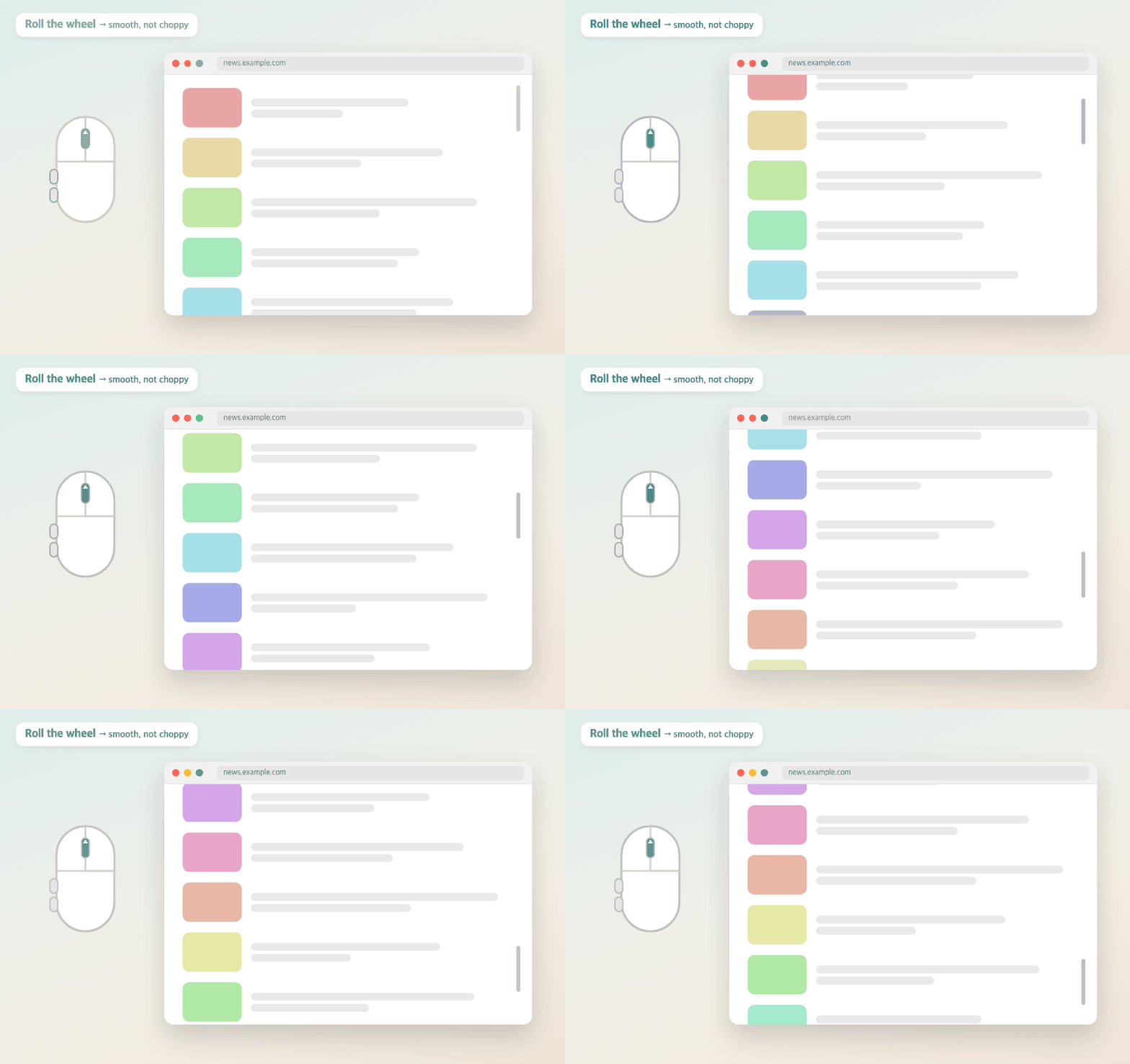
No more choppy wheel steps · Windows-style direction for the mouse only
At a glance
Most button combos, scrolling and pointer settings are built in
Pro adds more in every category
| What you can do | Example | Free · Pro |
|---|---|---|
| Buttons — what you press | ||
| Button press | Side buttons (back · forward) · wheel click | Free |
| Hold + click | Hold right, click left → back | Free |
| Hold + wheel | Hold right + wheel → switch tabs | Free |
| Hold + swipe | Hold wheel, move left/right → switch desktops | Free |
| Key + mouse | ⌥ + wheel · ⌘ + side button | Free |
| Double press · long press | Side button twice → new tab | Pro |
| Press to register | Extra gaming-mouse buttons · thumb wheel · buttons that send keys | Pro |
| Actions — what happens | ||
| 46 built-in actions | Back · tabs · window tiling · desktops · music · screenshots | Free |
| Copy · capture area with the mouse | Hold right + side button → ⌘C · hold side + wheel → capture | Free |
| Your own actions | Record a shortcut · open an app · run a Shortcut | Pro |
| Radial menu · sliders | 8 slots around the cursor · hold and move for volume · brightness | Pro |
| Scrolling · pointer — how it moves | ||
| Smooth scrolling · wheel direction | Windows-style for the mouse, trackpad untouched | Free |
| Horizontal scrolling | ⇧ + wheel · thumb wheel · direction · speed | Free |
| Pointer speed · no acceleration | For the mouse only | Free |
| Autoscroll · hold and move to scroll | Windows-style autoscroll for long documents · spreadsheets | Pro |
| Precision mode | Slow pointer while held | Pro |
| Click & wheel chatter guard | Stray double clicks and backward wheel ticks from a worn mouse | Free |
| Files · clipboard | ||
| Shelf | Shake mid-drag or press a button → collect and move together · recent shelves · watch folders | Pro |
| 8-slot drop ring | Favorite folders · AirDrop · open with an app · copy path · a ring per app | Pro |
| Quick actions | Resize photos · JPG↔PNG · copy text from images · zip | Pro |
| Clipboard panel | Last 30 copies · pick with the wheel · pinned snippets | Pro |
| Plain-text paste | Just the text, clipboard untouched | Pro |
| Select to copy · wheel-click paste | Like Linux · your ⌘C clipboard stays as is | Pro |
| Windows · text | ||
| Grab & move windows | Drag a window from anywhere · ⌥ to resize | Pro |
| Translate selection | Right by the cursor · on-device (macOS 15+) | Pro |
| Per app — where | ||
| Per-app actions · off in apps | Undo only in your drawing app · rest while gaming | Pro |
| Per-app scroll speed | Fast in spreadsheets · slow in photo apps | Pro |
| Sync settings across Macs | Combos, scrolling and per-app settings via iCloud Drive | Pro |
| Per-mouse settings | Wheel direction, scrolling and pointer speed for each mouse | Pro |
| Thumb gesture button | On mice with a gesture button — press · hold and swipe 4 ways | Pro |
No clashes, no confusion
Press any button to see what it’s set to · opens automatically for a new mouse
Buttons you don’t use in combos are never held back, and right-click menus don’t lag
If another app that remaps buttons or the wheel is running, KokKok tells you and lets you turn it off
Settings
Mouse icon in the menu bar → Settings… · same layout as TokTok
Get Pro
Everything in Pro with one purchase
KokKok Pro
One-time purchase
- Shelf · 8-slot drop ring · watch folders
- Clipboard panel · pick with the wheel · pinned snippets
- Resize photos · JPG↔PNG · copy text from images
- Per-app actions · off in apps · per-app scroll speed
- Per-mouse settings · thumb gesture button · press to register
- Your shortcuts · open apps · run Shortcuts
- Autoscroll · hold and move to scroll · precision mode
- Radial menu · volume · brightness sliders · double · long press
- Grab & move windows · translate selection · plain-text paste
- Settings sync across your Macs
Use the basic features as long as you like, then go Pro if you love it
Buy for $4.99Card payment (Gumroad) · your code arrives at your purchase email right away
Secure checkout by Gumroad
- Pay (card)
- Copy the code starting with KOK- from the email
- KokKok Settings → Pro → paste the code → Register
After purchase, 3 steps
Please try the basic features first, then buy.
More from SeoriArts
Making your Mac easier
Rest a finger on the trackpad and tap beside it — back, window tiling, volume and more. Set up just like KokKok.
FAQ
Which mice does it work with?
Most USB and Bluetooth mice.
Side-button combos need a mouse with side buttons (office or gaming mice); hold + click and hold + wheel work even on a two-button mouse.
Magic Mouse and trackpads are left alone (for trackpads, see TokTok).
Can I use it with other mouse apps?
If two apps use the same button, the action may run twice.
Turn the other app off for now in KokKok Settings → Help → Mouse app check, or uninstall it to move fully to KokKok.
Does right-click get slower?
Only when you use right-button combos does KokKok hold the click for a moment, and it passes it on if it isn’t a combo.
Move the cursor while holding and the menu opens right away.
Turn off all right-button combos and right-click is never held.
My code didn’t arrive
Please check your spam folder first.
If it’s not there, enter your purchase email at Resend my code.
What if I get a new Mac or reinstall?
Just enter the same code again.
The same Mac doesn’t use up another seat.
If you switched to a new Mac, release the old one in KokKok Settings or Manage devices.
Does TokTok Pro include KokKok Pro?
No, they’re separate.
The trackpad app (TokTok) and the mouse app (KokKok) suit different people, so you only buy what you need.
Which permissions does it need?
Accessibility and Input Monitoring, to read mouse buttons and the wheel and send actions.
It asks for Screen Recording only when you capture an area, and to control Finder only when the drop ring uses files selected in Finder.
It never records what you type, and only captures the screen when you ask it to.
Where is clipboard history kept?
Only on this Mac — it’s never sent anywhere.
Copies from password managers aren’t remembered, and turning off “Keep after restart” in Settings deletes saved history.