TokTok
Rest a finger on your trackpad and tap next to it.
Back and forward, right under one hand.
How it works
Right hand · tap left or right of the resting finger
◎ Radial menu
Rest three fingers for a moment — a menu appears at the pointer. Slide toward a slot and lift to run it.
- Apps · folders · shortcuts · actions in 8 slots
- Nothing to memorize — just a direction
- Adjust delay, background, three or four fingers
- Drag slots to reorder · drop apps from Finder
See it in action
Just check it in Settings · ⭐ = Pro · choose from 43 actions
Tap the top-left corner and the window snaps to the left half
Top row: left half · fill · right half
Slide along the right edge to change volume
Tap a link with three fingers
Swipe in from the bottom-right corner
Rest two fingers, tap beside them
Tap with four fingers
Tap with five fingers
Slide up and down on the left edge
Double tap a corner for a quarter window
Shrink a filled window back to the middle
Pick an area, copied to clipboard
Horizontal scroll in Final Cut · Premiere
Swipe with two fingers on a window's title bar
Rest one finger, slide two sideways
All gestures
Free covers most gestures and all 43 actions
Pro adds double taps · the radial menu · your own shortcuts
| Gesture | How | Default action | Free · Pro |
|---|---|---|---|
| One finger rest, tap leftRest middle, tap index | Rest middle, tap index | Back ⌘[ | Free |
| One finger rest, tap rightRest index, tap middle | Rest index, tap middle | Forward ⌘] | Free |
| Two fingers rest, tap leftRest middle + ring, tap index | Rest middle + ring, tap index | Previous tab | Free |
| Two fingers rest, tap rightRest index + middle, tap ring | Rest index + middle, tap ring | Next tab | Free |
| Two fingers rest, tap betweenRest index + ring, tap middle | Rest index + ring, tap middle | Reload | Free |
| Three fingers rest, tap left / rightRest three fingers, tap with the outer one | Rest three fingers, tap with the outer one | Desktop left / right | Free |
| Three-finger tapTap with three fingers | Tap with three fingers | Middle click (open link in new tab) | Free |
| Four-finger tapTap with four fingers | Tap with four fingers | Close tab/window ⌘W | Free |
| Corner tap ×4Tap a trackpad corner with one finger | Tap a trackpad corner with one finger | Left half · Right half · Mission Control · Fill | Free |
| Top-center tapTap the top-center edge with one finger | Tap the top-center edge with one finger | Fill (top row: left half · fill · right half) | Free |
| Five-finger tapTap with five fingers | Tap with five fingers | Mission Control | Free |
| Swipe in from a corner ×4Start at any corner, swipe toward the center | Start at any corner, swipe toward the center | New note · Mission Control and more | Free |
| Edge sliders ×4Slide up/down on the left/right edges, sideways on the top/bottom | Slide up/down on the left/right edges, sideways on the top/bottom | Brightness · Volume | Free |
| Corner / top-center double tapTap the same spot twice quickly | Tap the same spot twice quickly | Quarters · Next display | ⭐ Pro |
| Three/four-finger double tapDouble tap with three or four fingers | Double tap with three or four fingers | Screenshot to clipboard · New tab | ⭐ Pro |
| Title bar gesturesSwipe or pinch with two fingers on a window's title bar | Swipe or pinch with two fingers on a window's title bar | Halves · fill · center · minimize · full screen | ⭐ Pro |
| Radial menuRest three or four fingers, then slide and release | Rest three or four fingers, then slide and release | 8 slots: apps · folders · shortcuts · actions | ⭐ Pro |
| Swipe to switch appsRest one finger, slide two sideways | Rest one finger, slide two sideways | Switch apps ⌘Tab | ⭐ Pro |
| Your own shortcutsRecord any key combo for any gesture (up to 5 in a row) | Record any key combo for any gesture (up to 5 in a row) | Sequences like ⌘A → ⌘C | ⭐ Pro |
| Custom slider actionsEdge sliders beyond volume and brightness | Edge sliders beyond volume and brightness | Timeline scroll · zoom | ⭐ Pro |
| Per-app actions · open appsDifferent actions per app, open apps or run Shortcuts, turn off in some apps | Different actions per app, open apps or run Shortcuts, turn off in some apps | e.g. translate only in Chrome | ⭐ Pro |
Screenshots
Menu bar ✌️ icon → Settings…
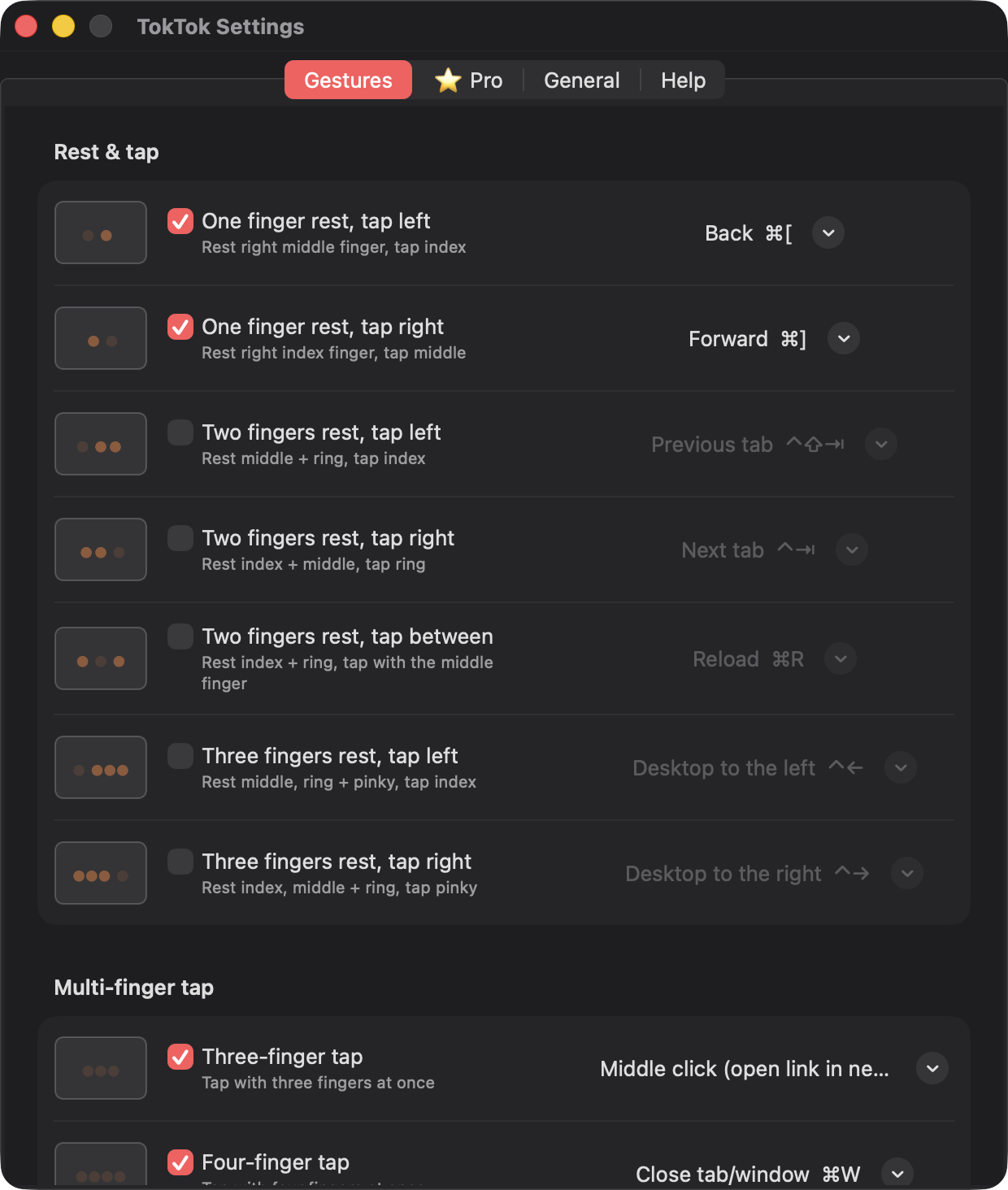
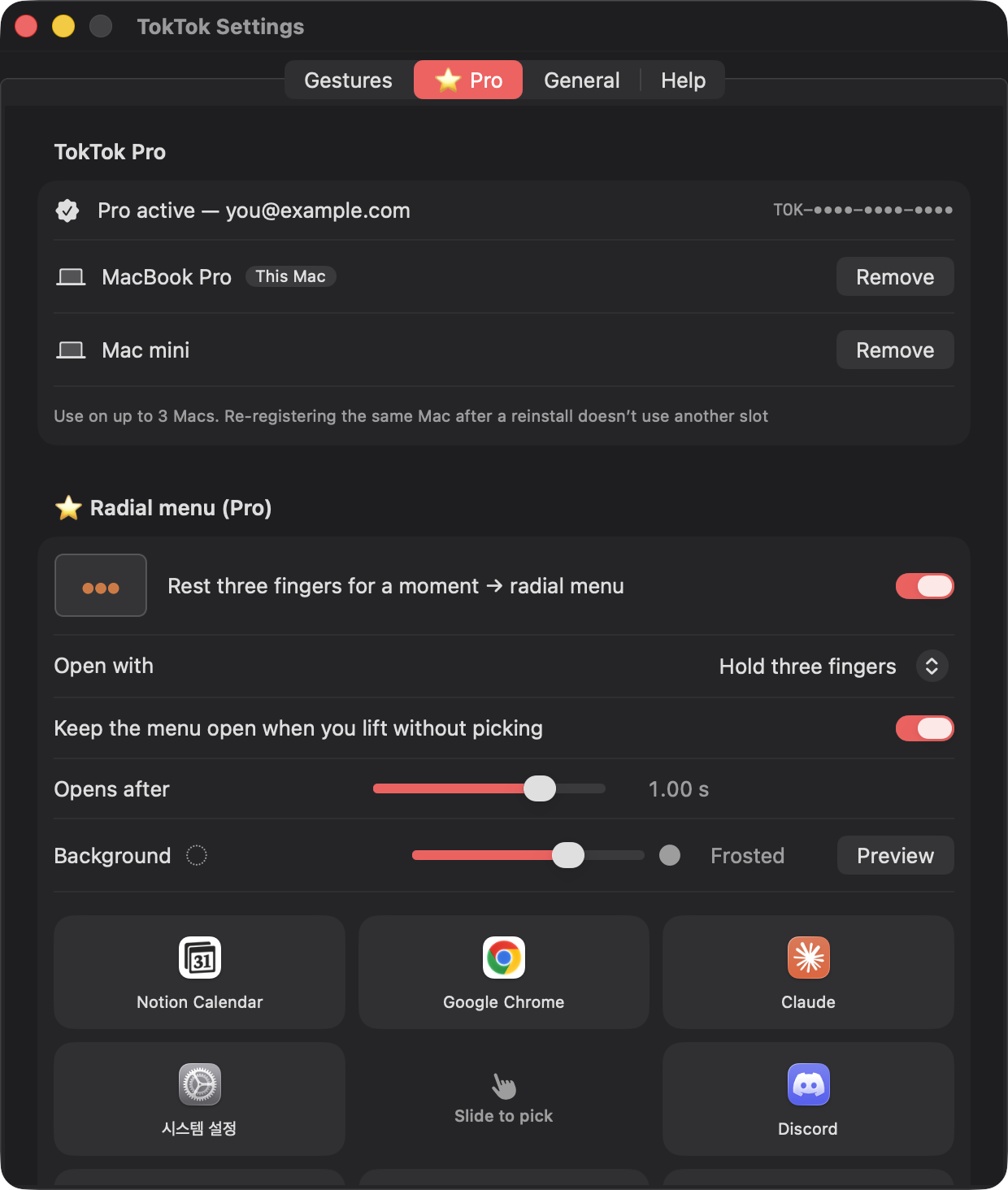
Coming from another gesture tool? Popular setups and how to do them in TokTok — just check and pick an action
| Popular setup | In TokTok | |
|---|---|---|
| One finger rest + tap → copy / paste | Rest & tap → pick Copy ⌘C · Paste ⌘V | Free |
| Three-finger tap → open in new tab | Three-finger tap (default) | Free |
| Corner click → half window | Corner tap → left / right half | Free |
| Three fingers rest + tap → switch desktop | Three fingers rest, tap left / right | Free |
| Three-finger double tap → screenshot | Three-finger double tap → screenshot (default) | ⭐ Pro |
| Four-finger double tap → clipboard history | Four-finger double tap → record your clipboard app's shortcut | ⭐ Pro |
| Gesture → open app · run script | Open app… · Run shortcut… | ⭐ Pro |
| Different action only in Chrome (translate…) | Per-app actions | ⭐ Pro |
| Swipe on title bar → snap window | Title bar gestures | ⭐ Pro |
Get TokTok Pro
Pay once, use forever · 3 Macs
TokTok Pro
lifetime · charged in KRW
- Radial menu (apps · folders · shortcuts, one slide away)
- Double-tap gestures (quarters · screenshot · next display)
- Your shortcuts on any gesture · key sequences
- Slider horizontal scroll · zoom
- Per-app actions · open apps · swipe app switching
- Up to 3 Macs, future Pro features included
Use the free features first, upgrade to Pro when you’re ready
Buy now — 50% offDebit/credit card · Apple Pay · Google Pay
⚠️ Your license code is sent only to the email you enter at checkout. Please double-check it for typos.
🔒 Secure checkout by Gumroad. Charged in KRW (₩4,950 during the launch sale); your card converts it to your currency.
- Enter your email carefully at checkout
- Your license code arrives by email
- TokTok Settings → TokTok Pro → paste code → Register
After you pay
Full refund within 7 days if the code hasn’t been registered. After registering, refunds within 7 days are minus the payment fee — please try the free version first. Refund policy
More from SeoriArts
Free tools for a nicer Mac
Right ⌘ Korean/English switch, mouse wheel direction, Korean filename fixes and MacBook basics — in one command. For Korean users.
FAQ
What’s free?
Rest-and-tap, multi-finger taps, corner taps, edge sliders (volume, brightness) and the new-note swipe are all free, with 43 actions to choose from: back/forward, tabs, window halves/quarters/fill, desktops, copy/paste, screenshots, media and more. Pro adds double taps, your own shortcuts, slider scroll/zoom, swipe app switching and per-app off.
So many options — where do I start?
Apply a recommended preset from the General tab (browser · windows · video & design · copy & paste). Export your setup to share it or move it to another Mac.
I didn’t get my code
Check your spam folder first. Still nothing? Use Resend code with the email you used at checkout, or write to help@seoriarts.com with your receipt.
New Mac or reinstall?
Enter the same code again. The same Mac doesn’t use an extra slot. For a new Mac, remove the old one in TokTok Settings or on Manage devices.
Can I get a refund?
Yes, within 7 days of purchase if you haven’t registered the license code yet. After registration, we refund the amount minus the payment fee (within 7 days). If something doesn’t work, we fix it through updates. Refund policy
What permissions does it need?
Accessibility permission, to send keys and move windows. TokTok only reads finger positions on the trackpad — never your keystrokes or screen.
Does it work with Magic Trackpad?
Yes. Built-in MacBook trackpads and Magic Trackpad are both supported.
Will it work on future macOS versions?
TokTok supports macOS 13 and later on Apple silicon and Intel Macs. It reads finger positions through a private macOS framework, so we can’t guarantee it will keep working on future macOS versions — if Apple changes it, some features may stop working. We update as quickly as we can for each new macOS, and you can install updates in one click from Settings. Please try the free version first.